

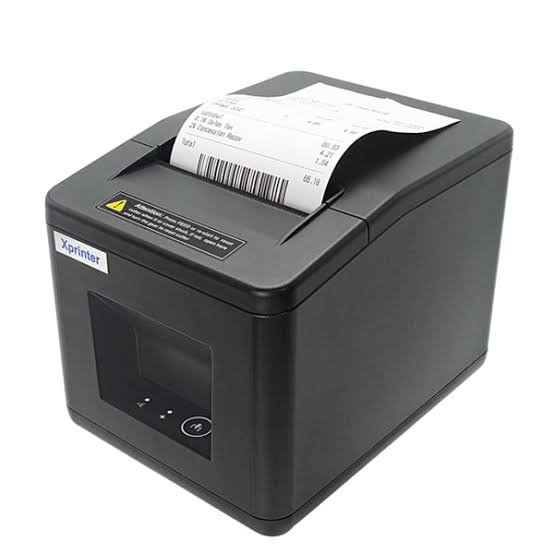
Thermal printers are widely used in retail stores, restaurants, warehouses, pharmacies, and other businesses that depend on fast and consistent document printing. They help produce receipts, labels, tickets, and transaction records without the need for traditional ink or toner. Despite their convenience, these devices can occasionally experience problems that affect print quality, paper feeding, connectivity, or overall performance.
Understanding common printer issues makes it easier for employees and technicians to identify possible causes and take appropriate action. Businesses using an Xprinter Thermal Printer can benefit from following basic troubleshooting procedures before arranging professional servicing. Many minor printing problems can be resolved through routine checks, correct settings, and proper maintenance.
1. Printer Not Turning On
A thermal printer that does not power on cannot receive or process printing commands. This problem may be related to the power adapter, electrical outlet, cable connection, or internal hardware.
Before assuming that the printer is damaged, check the power supply carefully.
Practical troubleshooting tips:
- Confirm that the power cable is firmly connected to the printer and adapter.
- Check whether the electrical outlet is working.
- Inspect the adapter for visible damage.
- Make sure the power switch is in the correct position.
- Use only a compatible power adapter with the required voltage and current ratings.
If the printer still does not turn on, avoid opening its electrical components without proper technical knowledge. Contact qualified support for further inspection.
2. Printer Produces Blank Receipts
Blank receipts are a common issue with direct thermal printers. In many cases, the cause is incorrect paper installation rather than a hardware failure.
Thermal paper has a coated side that reacts to heat from the printhead. If the roll is loaded in the wrong direction, the printer may feed paper without producing visible text.
How to fix it:
- Open the paper compartment.
- Remove the existing paper roll.
- Check the manufacturer’s recommended loading direction.
- Reinstall the roll with the thermal coating facing the printhead.
- Close the cover securely and print a test receipt.
If the paper is installed correctly but remains blank, check the print settings and inspect the printhead for possible damage.
3. Faded or Light Printing
Faded text can make receipts difficult to read and may cause problems when customers need to verify transaction details. This issue can result from unsuitable thermal paper, a dirty printhead, incorrect darkness settings, or worn printing components.
Several simple checks can help identify the cause.
Recommended solutions:
- Use thermal paper that meets the printer’s specifications.
- Clean the printhead according to the manufacturer’s instructions.
- Review the print-density or darkness settings.
- Check whether the paper has been exposed to excessive heat or sunlight.
- Test another compatible paper roll.
Increasing print darkness may improve readability, but excessively high settings can affect printhead performance. Use appropriate settings rather than applying maximum darkness automatically.
4. Paper Jams During Printing
Paper jams interrupt printing and can slow down checkout or order-processing activities. They may occur when the paper roll is incorrectly positioned, damaged, or incompatible with the printer.
Dust and small paper fragments inside the feeding mechanism can also contribute to the problem.
Practical troubleshooting steps:
- Stop the printing process and switch off the printer if necessary.
- Open the paper compartment according to the user manual.
- Remove the jammed paper gently.
- Check for torn fragments inside the paper path.
- Inspect the roll for creases or damaged edges.
- Reload a compatible paper roll.
- Close the cover and test the printer.
Avoid pulling paper forcefully or using sharp objects to remove debris, as this may damage internal components.
5. Printer Not Connecting to the Computer
A thermal printer may fail to communicate with a computer even when its power supply is working properly. The problem can involve loose cables, incorrect interface selection, missing drivers, or incompatible software settings.
The first step is to identify the connection method used by the printer.
For USB connections, inspect the cable and try another compatible USB port. For Ethernet connections, check the network cable and verify the printer’s network configuration. Wireless models may require Bluetooth pairing or network setup.
Also confirm that the computer recognizes the printer and that the correct device has been selected in the operating system.
6. Incorrect or Missing Printer Driver
Printer drivers allow the operating system and application software to communicate with the hardware. If the wrong driver is installed, printing may fail or produce unexpected results.
This issue can appear after installing a new operating system, changing computers, or updating existing software.
Troubleshooting recommendations:
- Identify the exact printer model.
- Download the appropriate driver from the manufacturer’s official support resources.
- Confirm that the driver supports the installed operating system.
- Remove outdated or conflicting driver installations when necessary.
- Restart the computer after installation.
- Print a test page to verify communication.
Avoid installing drivers from unknown websites because unofficial files may be outdated, incompatible, or unsafe.
7. Printer Cuts Receipts Incorrectly
Some thermal receipt printers include an automatic cutter that separates completed receipts from the remaining paper roll. When the cutter fails, paper may remain attached, become partially cut, or jam near the outlet.
Possible causes include paper fragments, cutter wear, incorrect paper loading, or a mechanical fault.
What to check:
- Make sure the paper is loaded correctly.
- Inspect the outlet for visible paper debris.
- Check whether the cutter mechanism is obstructed.
- Follow the manufacturer’s instructions for cutter recovery.
- Confirm whether the selected model supports the required cutting function.
Do not attempt to remove or adjust cutter blades while the printer is powered on. If the cutter repeatedly fails, professional servicing may be necessary.
8. Printing Stops Unexpectedly
A printer may begin producing a receipt and then stop before completing the job. This can happen because of communication interruptions, power instability, overheating, software errors, or paper-feed problems.
Start by checking whether the printer displays an error indicator or warning light. The meaning of indicator patterns varies between models, so consult the relevant user manual.
Other useful checks include:
- Confirming that the power connection is stable.
- Checking whether the paper roll is nearly empty.
- Reviewing the computer’s print queue.
- Restarting the printer and connected device.
- Testing a shorter print job.
- Inspecting the USB or network connection.
If interruptions continue, investigate whether the issue occurs with a particular application or across all printing software.
9. Printer Prints Garbled or Incorrect Characters
Unexpected symbols, missing characters, or distorted text may indicate a communication or configuration problem. The printer may be receiving commands that do not match its supported command language or settings.
This issue can occur when a business installs a new POS application or changes printer configurations.
To troubleshoot it, check the following:
- Verify that the correct printer driver is installed.
- Confirm that the POS software supports the printer.
- Review the selected printer model and command language.
- Check the character encoding settings.
- Test printing from another compatible application.
If the printer works correctly with one application but not another, the problem may be related to the software configuration rather than the printer hardware.
10. Printer Feeds Too Much or Too Little Paper
Incorrect paper feeding can produce receipts with excessive blank space, cut-off information, or incomplete content. This may be caused by software formatting, paper settings, or an issue with the feed mechanism.
Businesses should first check the receipt configuration in their POS software. Confirm that the selected paper width, margins, and document dimensions match the printer’s specifications.
If the software settings appear correct, inspect the paper roll and feeding mechanism for obstructions. A test print can help determine whether the issue is related to the application or the hardware.
11. Barcode Printing Problems
Thermal printers used for labels and other barcode applications must produce clear, properly formatted symbols. Poor barcode output can prevent scanners from reading product or inventory information.
Common causes include low resolution, incorrect barcode dimensions, unsuitable media, and excessive or insufficient print darkness.
Practical solutions include:
- Select a barcode size supported by the application.
- Use compatible label material.
- Check the printer’s resolution.
- Adjust print density when necessary.
- Confirm that the barcode format is supported.
- Test the printed barcode with the scanner used in daily operations.
A barcode should be tested after changing printer settings or label dimensions, rather than assuming that visually clear printing will always scan correctly.
12. Printer Overheating During Heavy Use
Continuous printing can place additional demands on the printhead and other internal components. Some printers may pause or show an error when operating conditions exceed their recommended limits.
If a printer becomes unusually hot or stops during extended printing sessions, allow it to cool according to the manufacturer’s guidance.
To reduce the likelihood of overheating:
- Follow the recommended operating environment.
- Keep ventilation areas unobstructed.
- Avoid placing the printer near direct heat sources.
- Use compatible paper and appropriate print settings.
- Follow the specified duty cycle.
Persistent overheating or unusual smells should be treated as a potential hardware or electrical problem. Stop using the device and seek qualified assistance.
13. Bluetooth or Wireless Printing Failure
Wireless thermal printers provide flexibility for mobile POS systems and other compatible devices. However, connection problems can occur because of pairing errors, incorrect network settings, distance, or interference.
For Bluetooth models, make sure Bluetooth is enabled on both devices and that the printer is discoverable. Remove an outdated pairing if necessary and complete the pairing process again.
For network-connected models, verify that the printer and sending device are configured to communicate through the appropriate network.
Also check the model’s supported wireless standards and operating system requirements. Wireless features and setup procedures vary across printer models.
14. Preventive Maintenance to Reduce Printer Problems
Regular maintenance can help prevent many common thermal printer issues. Dust, paper residue, and adhesive buildup can affect print quality and interfere with moving components.
A simple maintenance routine should include:
| Maintenance task | Recommended purpose |
|---|---|
| Clean the printhead | Maintain clear and consistent printing |
| Inspect the paper path | Reduce feeding problems and jams |
| Check the platen roller | Identify dirt or visible wear |
| Inspect the cutter | Detect obstructions and cutting issues |
| Check cables and adapters | Prevent connection and power interruptions |
| Use compatible media | Support consistent printing performance |
| Review printer settings | Avoid unnecessary printing errors |
Always follow the manufacturer’s cleaning instructions. Use approved materials and allow components to cool before performing maintenance.
15. When to Seek Professional Technical Support
Basic troubleshooting is useful for resolving minor issues, but some problems require professional attention. Repeated power failures, damaged connectors, persistent cutter faults, printhead damage, and internal electrical problems should not be handled through improvised repairs.
Technical support may also be necessary when a printer repeatedly loses its configuration or fails to communicate with compatible software despite correct driver installation.
Before requesting assistance, collect useful information such as:
- Exact printer model.
- Operating system and POS software version.
- Description of the problem.
- Error indicators or messages.
- Steps already taken.
- Examples of defective print output, if available.
Providing these details can help technicians identify the likely cause more efficiently.
Conclusion
Thermal printer problems can affect transaction processing, inventory management, and other everyday business activities. Issues such as blank receipts, faded text, paper jams, driver errors, connectivity failures, and cutter malfunctions often have identifiable causes that can be checked through basic troubleshooting.
Regular cleaning, compatible paper, correct software configuration, and proper installation are essential for maintaining reliable performance. When problems involve damaged components or persistent electrical faults, professional support is the safer option. A consistent maintenance approach helps businesses reduce unnecessary downtime and keep their receipt and label printing operations running smoothly.
