

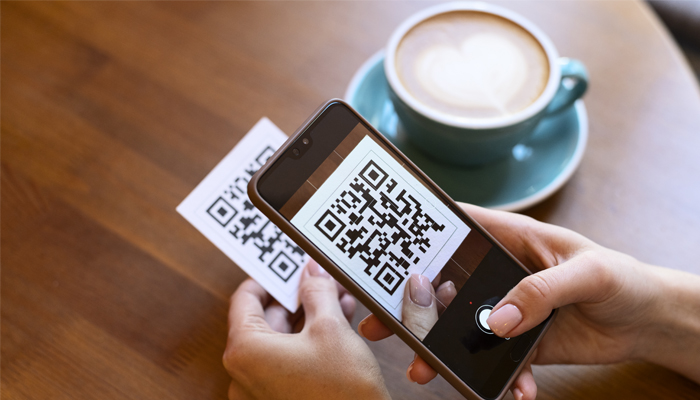
QR codes provide a convenient way to access websites, menus, tickets, contact details, and other digital information. They are now commonly found on packaging, posters, advertisements, documents, and printed materials.
If you need to scan a QR code from an image, you may not need to install a dedicated application. An online scanner can allow you to process a saved QR code through a web browser, making it a useful option for occasional scanning.
What Is Online QR Code Scanning?
Online QR code scanning uses a web-based service to identify and decode the pattern contained in a QR code. Instead of installing software, you open the scanner in a compatible browser and provide the QR code through a supported input method.
This approach can be especially useful when the QR code is already available as a screenshot, photograph, downloaded image, or digital document.
How to Scan a QR Code Online
The process is generally quick and requires only a few steps.
Step 1: Find a Suitable Online Scanner
Open a browser-based QR scanning service on your computer, tablet, or other supported device. Choose a service that clearly explains how it handles image uploads and scanning.
There is usually no need to download an additional application for basic image-based scanning.
Step 2: Prepare the QR Code Image
Locate the image containing the QR code. For the best results, use the clearest version available and make sure the complete QR pattern is visible.
Avoid using heavily compressed, blurry, or severely cropped images whenever possible.
Step 3: Upload the Image
Select the scanner’s upload option and choose the QR code image from your device. The service will process the image and attempt to identify the encoded information.
If the scanner cannot recognize the code, try another image with better resolution or clarity.
Step 4: Review the Result
Once the code has been decoded, the scanner should display its contents. The result might be a website URL, text, contact details, or another type of information.
Review the result before opening links or taking further action.
Step 5: Use the Decoded Information
If the result is relevant and appears trustworthy, you can open the website, copy the text, or use the information as needed.
If the destination looks suspicious or unexpected, do not continue simply because the QR code was successfully decoded.
Why Scan QR Codes Online?
Browser-based scanning can be useful in several situations. It is particularly convenient when a QR code is already stored on a computer and transferring it to a smartphone would be unnecessary.
It can also be suitable for users who only need to decode QR codes occasionally and do not want another application on their device.
Common Examples
An online scanner can help you read QR codes from:
- Screenshots
- Saved photographs
- Downloaded images
- Digital documents
- Product images
- QR codes shared electronically
The exact file types supported will depend on the scanner.
How to Improve Scanning Accuracy
A scanner needs enough visual information to recognize the QR pattern. Make sure the image is sharp and that all major parts of the code are visible.
If scanning fails, try the original image instead of a compressed copy. You can also check whether the image has been resized, filtered, or distorted in a way that changes the QR pattern.
Is Online QR Scanning Safe?
The scanning process itself does not guarantee that the decoded content is safe. A QR code may lead to a legitimate website, but it can also direct users toward phishing pages, deceptive websites, or unexpected downloads.
Before opening an unfamiliar URL, examine the domain carefully. Be cautious if a page requests passwords, payment details, verification codes, or downloads that you were not expecting.
Simple Safety Practices
- Check the destination URL before visiting it.
- Be cautious with QR codes from unknown sources.
- Avoid entering sensitive information on unfamiliar pages.
- Do not download unexpected files.
- Keep your browser and device software updated.
Online Scanner vs. QR Scanner App
The main difference is how the QR code is provided to the scanner. A mobile app or camera is convenient for physical QR codes because the device can capture the code directly.
An online scanner is often more convenient when the QR code is already saved as an image. For occasional digital scanning, a browser-based option may be all you need.
Privacy Considerations
Before uploading an image to an online service, consider whether it contains information unrelated to the QR code. A screenshot or document could include names, account details, or other private content.
Whenever possible, use an image that contains only the QR code. Reviewing the scanner’s available privacy information can also help you understand how uploaded content is handled.
Final Thoughts
You can scan a QR code online without installing an app when the code is available as a compatible image. The process usually involves opening a browser-based scanner, uploading the image, reviewing the decoded result, and deciding whether it is safe to use.
For the best experience, start with a clear image and remain cautious with unfamiliar links. Online scanning can be simple and convenient when combined with basic privacy and security practices.
